# Application Setup
This document provides instructions for installing, updating, and uninstalling the SDK in an Android project.
## Installing the SDK
To install the SDK in your Android project, follow these steps:
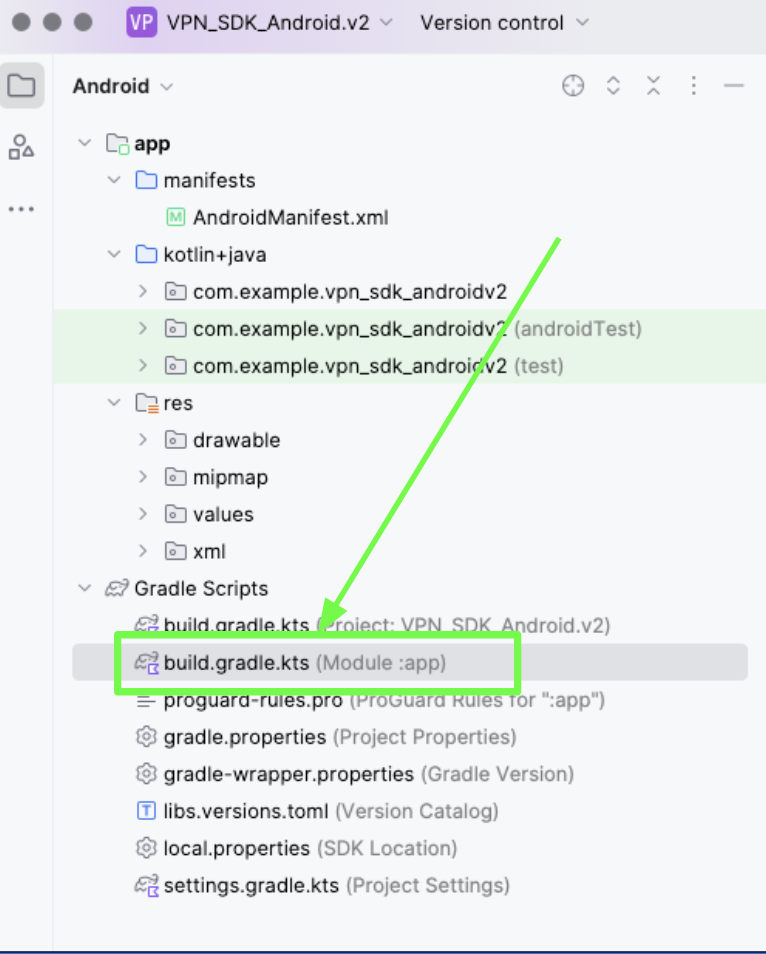
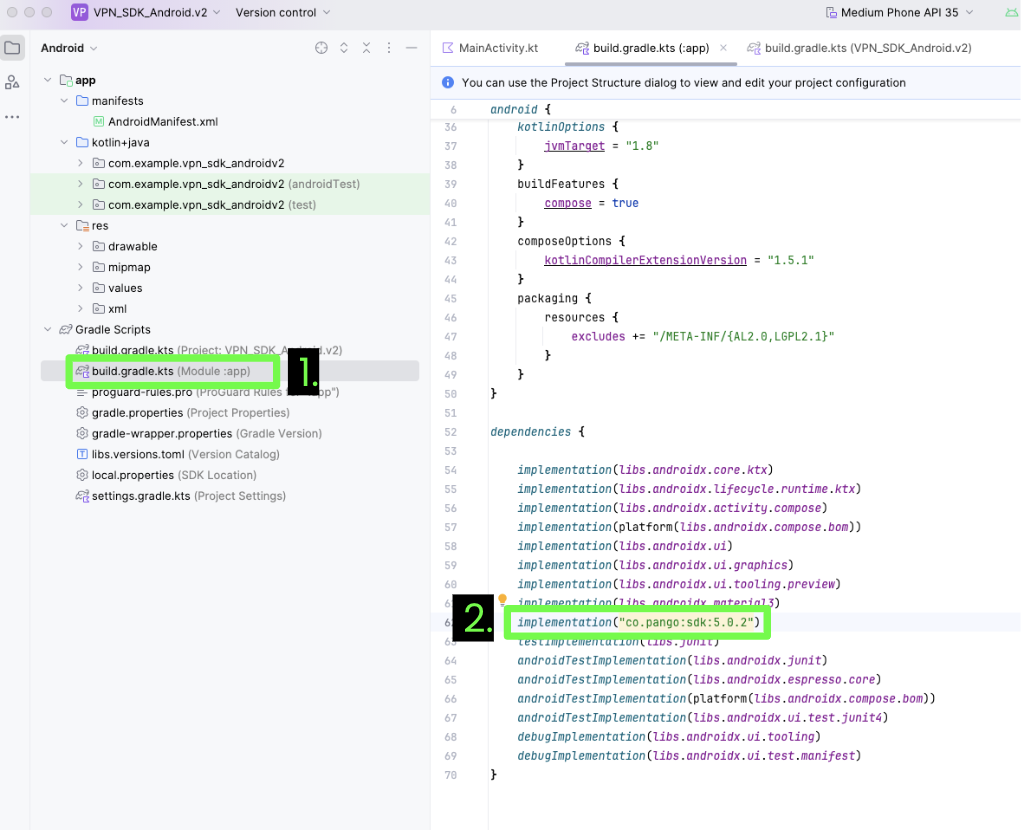
1. Open your project's file, `build.gradle.kts (Module: app)` (kotlin) file, or `build.gradle (Module: app)` (groovy) file.
2. Add the following line to the \`dependencies\` block:
For Kotlin (`build.gradle.kts`):
```
dependencies {
implemmentation("co.pango:sdk:${VERSION_NAME}")
}
```
For Groovy (`build.gradle`):
```groovy
dependencies {
implementation 'co.pango:sdk:' + VERSION_NAME
}
```
Replace `VERSION_NAME` with the desired version of the [SDK](https://pango.gitbook.io/paas/sdk/vpn-sdk-for-android).
3. Click on the Light Bulb icon that appears after entering the line of code. Then click `Sync Now`. It will take a minute or longer to sync. There will be a status bar at the top letting you know that it is syncing and it will also let you know when the sync is successful.\
\
After the Sync is complete, you will receive this message at the bottom of the Android Studio screen\\
## Updating the SDK
To update the SDK to a newer version:
1. Open your project's `build.gradle` file. Open your project's `build.gradle.kts (Module :app)` (Kotlin) or `build.gradle (Module :app)` (Groovy) file.
2. Locate the line where the SDK dependency is declared.\\
3. Change the `{VERSION_NAME}` to the new SDK version you want to use. You can find the most recent version [here](https://pango.gitbook.io/paas/sdk/vpn-sdk-for-android).
4. Click on the Light Bulb icon that appears after entering the line of code. Then click `Sync Now`. It will take some time to sync. There will be a status bar at the top letting you know that it is syncing and it will also let you know when the sync is successful.\
\\
## Uninstalling the SDK
When the application is uninstalled from an Android device, the Android system automatically removes all SDK-related files and data. No additional action is required.
However, if you want to remove the SDK integration from your project:
1. Open your project's `build.gradle.kts (Module :app)` (Kotlin) or `build.gradle (Module :app)` (Groovy) file.
2. Remove the SDK dependency line from the \`dependencies\` block.\\
3. Delete the following files from the application cache directory:
* `rndseq`
* `sd_cur.data`
* `vpr_wnd_counter_scanned_connections`\
\
\
\
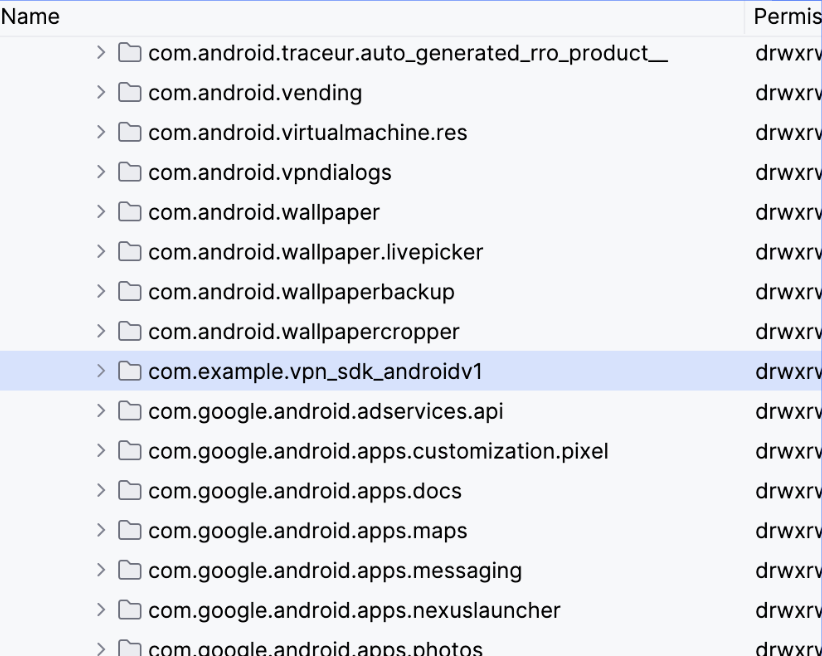
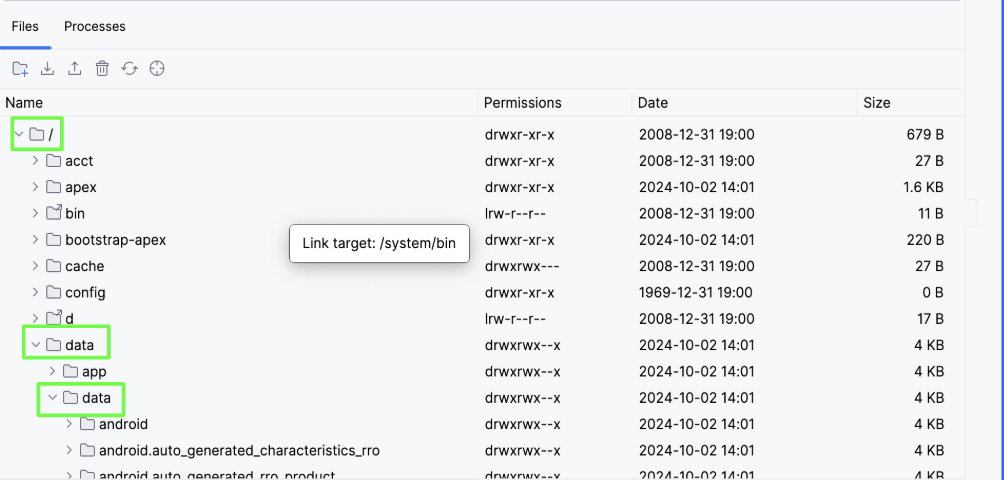
Go to View -> Tool Windows -> Device Explorer:\
\

Within Device File Explorer, expand the following path:\
\
`/data/data/[your.package.name]/cache/`
\
Replace `[your.package.name]` with your actual app package name.
4. Delete the following files from the application databases directory:
* `key_value_store.db`
* `anchorfree-ucr.db`\
\

5. Rebuild your project.

%20(1).png?alt=media)