# Troubleshooting
## Application issues
### Running the bootstrap\_service.ps1 script
The script helps to configure NetFilter SDK driver and Unified SDK service. The script includes security best practices by setting appropriate ACLs for both the service and device object to prevent unauthorized access. For detailed information about the security configuration, please refer to the [Netfilter Driver Security Best Practices](https://pango.gitbook.io/paas/sdk/unified-vpn-sdk-for-windows/setup/netfilter-driver-security-best-practices) documentation.
If you encounter issues running the `bootstrap_service.ps1` script successfully, follow these steps to execute the commands in the script manually:
1. Open Command Prompt:
* Right-click on the Command Prompt icon.
* Select "Run as administrator" to open it with elevated privileges.
2. Navigate to the unified SDK folder:
* Use the `cd` command followed by the full path to the `unified-sdk-windows-demo` directory.
* For example: `cd C:\Path\To\unified-sdk-windows-demo\`.
3. Check if `netfilter2` is installed (only for x86, x64):
* Run the command: `sc.exe query partner_netfilter2`.
* If the output says, "The specified service does not exist as an installed service," proceed to the next step.
4. Create a new `netfilter2` service:
* Run the command: `sc.exe create partner_netfilter2 binPath="C:\Path\To\unified-sdk-windows-demo\service\netfilter\partner_netfilter2.sys" type= kernel start= auto`.
* Replace `C:\Path\To\unified-sdk-windows-demo\` with the actual path to your `unified-sdk-windows-demo` directory.
* The output should indicate: `[SC] CreateService SUCCESS`.
5. Set service ACL (recommended for security):
* Run the command: `sc.exe sdset partner_netfilter2 "D:P(A;;FA;;;SY)(A;;GA;;;BA)"`.
* This restricts service access to LocalSystem and Administrators only.
6. Set device object security level (recommended for security):
* Run the command: `reg add HKLM\SYSTEM\CurrentControlSet\Services\partner_netfilter2 /v "seclevel" /t REG_DWORD /d 3 /f`.
* This restricts device object access to LocalSystem and Administrators.
7. Verify the `netfilter2` service:
* Run the command: `sc.exe query partner_netfilter2` again.
* The output should display the service details, including:
```
SERVICE_NAME: partner_netfilter2
TYPE: 1 KERNEL_DRIVER
WIN32_EXIT_CODE: 1 STOPPED
...
```
8. Install the Unified SDK service:
* Run the command: `"C:\Path\To\unified-sdk-windows-demo\service\UnifiedSDK.Service.exe" -install UnifiedSDKService`.
* Replace `"C:\Path\To\unified-sdk-windows-demo\"` with the actual path to your `unified-sdk-windows-demo`directory.
By following these steps, you should be able to manually execute the commands from the `bootstrap_service.ps1` script and resolve any issues you were facing.
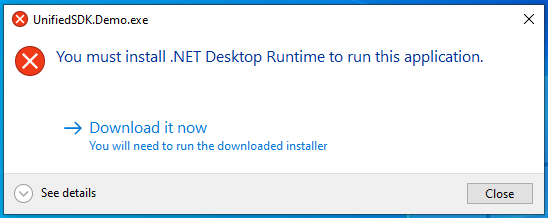
### Error: Application Requires .NET 8.0.0
When attempting to run the application, you encounter the following message: "You must install or update .NET to run this application".
1. Visit the official Microsoft .NET download page and download `NET 8.0 Desktop Runtime (v8.0.X)` for installed operating system
2. Download and run the installer, following the on-screen instructions.
3. Try running the demo application again. It should now launch successfully.