> For the complete documentation index, see [llms.txt](https://pango.gitbook.io/paas/llms.txt). Markdown versions of documentation pages are available by appending `.md` to page URLs; this page is available as [Markdown](https://pango.gitbook.io/paas/getting-started/quickstart.md).
# Quickstart
## Prerequisites
{% hint style="info" %}
* Self-registration is not available. If you do not have an account, please contact your account manager or [contact us](https://www.pango.co/contact-us/) to set one up.
{% endhint %}
* A Pango account. If you don't have one, contact your account manager to get set up.
* An existing project in the Pango Console. Contact your account manager if you need a project created for you.
* A demo app project folder. Contact your account manager to get access to the demo app.
{% tabs %}
{% tab title="Apple" %}
* iOS 18 or newer
* Latest version of Xcode (recommended)
{% endtab %}
{% tab title="Android" %}
* Android 21+
* Latest version of Android Studio (recommended)
* Java Development Kit (JDK) 17
{% endtab %}
{% tab title="Windows" %}
* Architecture of processor: x86, x64, ARM64
* Windows 10 (1607+) / Windows 11 (22H2+). See [Supported OS versions](https://github.com/dotnet/core/blob/main/release-notes/8.0/supported-os.md)
* Latest version of Visual Studio (recommended)
* Microsoft Software Development Kit v10+
* Installed NET 8.0 Desktop Runtime (v8.0.X) from official Microsoft .NET download page
{% endtab %}
{% endtabs %}
## Before Calling the VPN SDK
Before calling the VPN SDK, you will need to follow the steps below.
### Getting ProjectID
This is displayed in the upper right corner of the Pango Console, directly below the project name. This value is assigned when the project is created and cannot be changed.

### Getting Backend Url
Use one of the following:
* `https://api-stage.pango-cloud.com` — staging environment, recommended for initial integration and testing
* `https://api.pango-cloud.com` — can be used as a test domain for production; a dedicated production domain is provided as part of project creation
## Run the VPN SDK
Follow these steps to download, configure, and run the demo application. You can then verify it works by checking the results in the Pango Console.
{% tabs %}
{% tab title="Apple" %}
1. Download the demo app project folder and open the `.xcodeproj` file in Xcode.
2. Configure code signing: go to **TARGETS** > **Signing & Capabilities** and enable **Automatically manage signing**. Select your **Team**. If you haven't added an Apple account yet, go to **Xcode** > **Settings** > **Apple Accounts** > **Add Apple Account...**.
3. Set your Project ID: open `Projects/VPNSDK Demo/Configuration/Configuration.swift` and replace `YOUR_PROJECT_ID` with your actual `ProjectID`:
```swift
enum Configuration {
static let carrierID = "YOUR_PROJECT_ID"
...
}
```
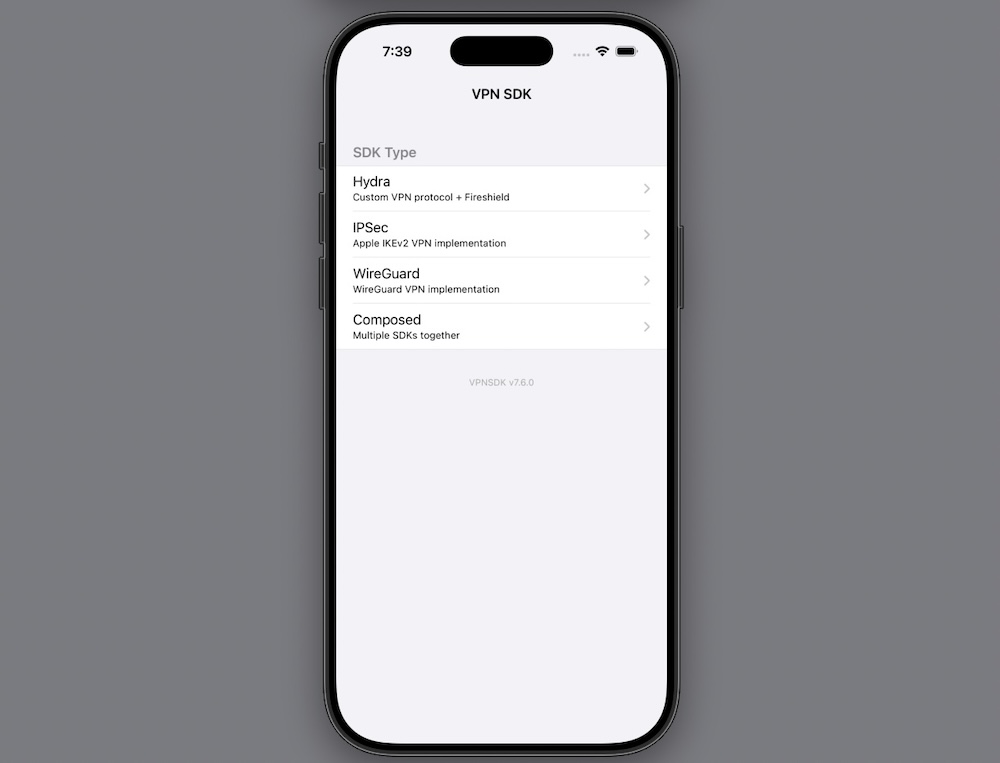
4. Build and run the project in the simulator. The running application should look like this:
VPN iOS Simulator
The iOS simulator does not support VPN sessions. You can only test the login functionality in the simulator.
{% endtab %}
{% tab title="Android" %}
{% hint style="info" %}
The demo application is named "Hydra SDK Demo" for legacy reasons, but it uses the current Unified VPN SDK.
{% endhint %}
1. Download the demo app project folder and open the folder in Android Studio.
2. On top right, click `Sync Project with Gradle Files`.
3. Click `Run` -> `Run 'app'`.
Android Studio
4. You are ready to connect to the VPN. To initiate the VPN connection process in the demo app:
* Click the "init" button. No visible change will occur, which is expected behavior.
* Click the "LOGIN" button. The app should now display a "Logged in" message, indicating successful authentication.
* Click the "Connect" button. The app will establish the VPN connection, and display a "Connected" message upon success.
{% endtab %}
{% tab title="Windows" %}
1. Download the demo app project folder and open `"..\unified-sdk-windows-demo\src\UnifiedSDK.Demo.sln"` in [Microsoft Visual Studio](https://visualstudio.microsoft.com/free-developer-offers/).
2. Right-click on the Command Prompt, select "Run as administrator" from the context menu, then navigate to the `unified-sdk-windows-demo` directory.
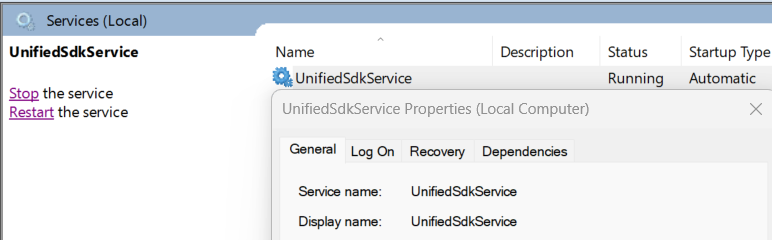
3. Run the following command: `powershell.exe -ExecutionPolicy Bypass -File "bootstrap_service.ps1"`
The script installs [NetFilter SDK](https://netfiltersdk.com/nfsdk.html) driver (only for x86, x64) and Unified SDK service on your device. The script also configures security settings to restrict driver access to administrators only, following [security best practices](/paas/sdk/unified-vpn-sdk-for-windows/setup/netfilter-driver-security-best-practices.md).
Unified SDK service is running after install
If you encounter any issues while running the bootstrap_service.ps1 script, please refer to troubleshooting section for instructions on how to install the service manually.
4. Launch [Visual Studio](https://visualstudio.microsoft.com/free-developer-offers/), navigate to the folder containing the recently downloaded project from GitHub and open the solution file `"..\unified-sdk-windows-demo\src\UnifiedSDK.Demo.sln"`.
5. Once the solution is open, click to restore NuGet Packages.
Restore NuGet Packages
6. Click to build the "UnifiedSDK.Demo" project.
Build the project
7. Navigate to `..\unified-sdk-windows-demo\output\Debug(Release)\UnifiedSDK.Demo\net8.0-windows\`, then double-click `UnifiedSDK.Demo.exe` to launch the demo application.
{% endtab %}
{% endtabs %}
## Verify VPN Connection
1. Your device is now connected to the VPN. To verify the connection:
* Open any browser on your device.
* Navigate to whatsmyip.com, ip.me, or any other site which can identify your IP.
* Observe that the IP address displayed is different from your device's actual IP address, confirming that traffic is being routed through the VPN.
2. When you are done testing, click the "Disconnect" button in the demo app to stop the VPN connection. Your device will return to using its regular network connection.
## Verify Your Connection in the Pango Console
1. Log in to [Pango Console](https://www.pango-cloud.com) and navigate to the **Users** page. You should see your test user listed:

2. Click on the user row to view detailed information about the test user:

## More Information
{% tabs %}
{% tab title="Apple" %}
[Unified VPN SDK for Apple](/paas/sdk/unified-vpn-sdk-for-apple.md)
{% endtab %}
{% tab title="Android" %}
[Unified VPN SDK for Android](/paas/sdk/vpn-sdk-for-android.md)
{% endtab %}
{% tab title="Windows" %}
[Unified VPN SDK for Windows](/paas/sdk/unified-vpn-sdk-for-windows.md)
{% endtab %}
{% endtabs %}